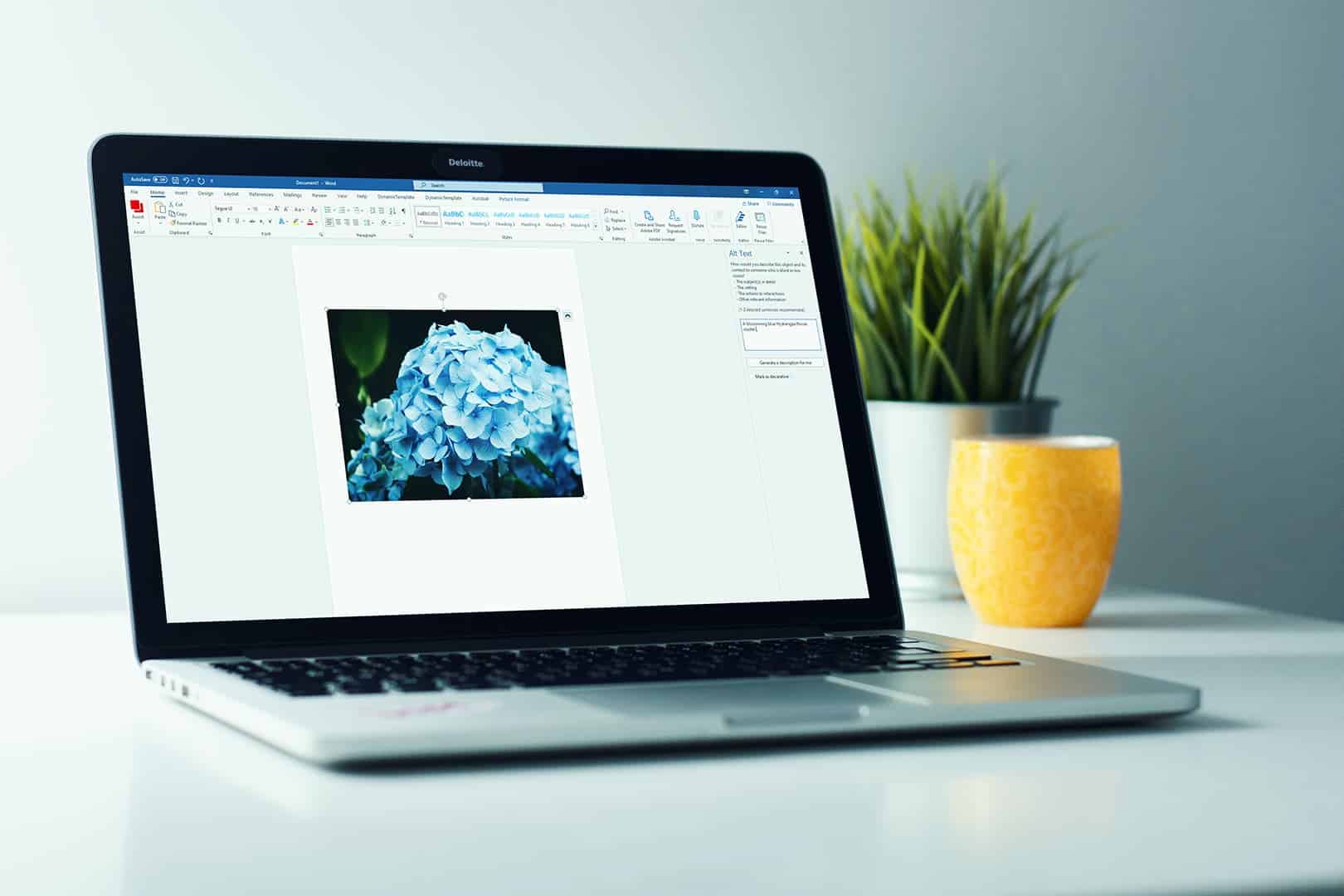
Alternative texts
How to write alt text for images in documents
Images, graphics, logos, and icons – they make documents far more enjoyable to read and often much easier to understand. Images are also used as social cues and help neurotypicals, but also help people with cognitive disabilities, visual impairments or neurodivergent people understand the meaning of a document or text.
In this article, you will learn more about alternative texts (sometimes called image alt tags, alternate texts or simply an alt tag), when and where to use them – and how to write decent alternative text.
What is alternative text?
Alternative text, commonly called alt text or an alt tag are used as a text equivalent or a text alternative to seeing the image that is described, if the image fails to load, but they are also read aloud by screen readers to increase the web accessibility of documents and web pages for people with low vision or other visual impairments.
Image alt text is a hidden alt attribute added to images to describe the content of the image file or convey the meaning of an image when it cannot be seen by the user. This can be due to slow internet and the image not loading on a website or because of visual impairment of the user.
Why is alt text necessary?
Adding images or graphics to your documents without the correct use of alt attributes (image alt text, for example) can create frustration for visually impaired people, since they often hold valuable or necessary information to get the full effect of the text or document.
In other words, images missing alt text make navigation and understanding difficult for screen reader users or if the image does not load.
How do you write good alt text?
Now that you know what alt text is and who it is made for, it is time to learn how to create well written alt text. Writing descriptive alt text can sometimes be an easy task, while in other cases quite difficult, it depends on the image – but it also depends on the message you are trying to convey and the context of the image.
Good alt text is one of the easiest ways to greatly increase the accessibility of your documents, but bad alt text can have a confusing or disorienting effect for the screen reader user.
Details, specificity, and the image’s context

There is a golden rule when writing appropriate alt text, and that is “Be descriptive”, but that does not mean that you should describe everything in the image. It is important to understand the meaning of the image and which parts of it that are of real importance to the user, who tries to access this information.
Example of detail, with a lack of specificity:
For the image above, an alt text that goes into detail, but lacks specificity could be:
- “Two people standing between the ocean and a cliffside.”
This alt text describes the image, but it only allows the screen reader to give a vague idea about what is going on. This level of detail is fine, if all you need is to get the general gist of what the image is showing.
But if the location, people or setting has a certain meaning to the text, for example on a tourism website or in a news segment, the above example is not enough.
Example of detail, with specificity in mind:
As stated above, what if the image is reflecting a specific part of the information you are trying to convey? Perhaps the image is used in a digital travel magazine, news segment, etc. An alt text that gives the screen reader user real information could be:
- “Two people standing beneath Møns Klint in southern Denmark on the coast of the Baltic Sea.”
This alt text example describes the image in specific details. It gives the user proper and useful information about the image that fits the context if it was brought in a digital tourism magazine.
And keep in mind: the screen reader knows when something is an image and will tell the screen reader user prior to reading the alt text. So there is no need to use “Image of..” or “picture of..” in front of your alt text.
Context is key
As is outlined above, the way you use image alt text depends on what you are trying to use the image for.
An image can be used to convey a basic sentiment, and perhaps the specific details are of lesser importance and may simply cause confusion for the reader. In these cases, the first example of the alt text added to the picture of the cliffside is sufficient.
However, as shown in the second example, the alt text will require a higher level of information if it is meant to add specific value to the text for the reader.
When you write alt text, remember to look at the image as part of the document and the message you are trying to convey. Avoid seeing the image as an independent part of your document – the context always sets the alt text requirement.
Which images require an alt text?
Alt text is meant to convey information to people with visual impairments. Most images carry important information, other images set a specific theme or ambience for a document, some images are logos that add credibility to a document.
However, in some cases, images are used purely for decoration, and it is better to not add alt text at all and leave an empty alt text for the screen readers to ignore or simply tag it as decorative.
Some images will always require an alt text
There are many different kinds of images, and just as many reasons to use images in your documents or texts.
But how do you know if your image will require an alt text? Here are some of the general rules for images that will always require alt text.
Informative images
Informative images are any and all images that add further information or value to the document or web page. They can both be simple and complex images.
If you are unsure of whether or not an image you are using qualifies as informative, ask yourself if the purpose of the document would be diminished or otherwise suffer from having that image removed – if yes, then the image is informative and will always require an alt text.
Writing alt text for informative images

For the above, the image’s alt text would differ based on the medium the image appears in and the surrounding text.
On this web page, where it is only chosen to match with the general blue aesthetic and to be used as an example for explaining alt text, the alt text would be:
- “Blue flower cluster.”
This description is sufficient, if the goal is to allow the user to know, that there is an image of a blue flower cluster. However, if the image was part of a gardening magazine it would require more specific details. The following example could be used in a gardening magazine:
- “A blossoming blue Hydrangea flower cluster.”
The level of specific detail is higher, since the reader expects more information and most likely would like to know exactly what kind of flower is in the image.
If the same image was used in an encyclopaedia, the alt text would be much more scientific and informative, to match the source setting. An example of an alt text in an encyclopaedia could be:
- “Blue flower of the French hydrangea, or hortensia (Hydrangea macrophylla).”
Images that have text on them
Some images have text on them. These types of images can contain critical information that is not available anywhere else in a document or on a webpage, and according to WCAG they should be entirely avoided. It is best to keep texts and images separate.
If it cannot be avoided, it is important to make sure that all the text on the image is in the alt text – this can be difficult, since alt text should not generally exceed a maximum of 100 characters (check the best practice for alt text at the end of this page).
An example of this is: logos.
Logos need alt text
Company or product logos are very rarely used with decorative intent and therefore requires an alt text.

Logos are often very easy to apply decent alt text to. They are usually meant to convey exactly their most simple meaning. An example for the image above should be:
- “Omnidocs logo.”
However, logos are often placed at the top of documents or on web pages, where they are used as image links to go to a home page or an about section – this completely changes the way you should handle them.
Images used as links or functional images
Images can be used as links, but as a general rule they should not. Mixing up how the screen reader users access the content on a web page or in a document is unnecessary.
If you must use an image as a link, make sure to treat it like a link, and not as an alt text. This means that the text of any clickable images should be used as link text, rather than to describe the image itself. This may seem contradictory to how you would usually treat images – but in this case, the image has changed its nature and is now a linked image and should therefore be treated as a link.
You can learn more in our article on accessible links.
What are decorative images?
A decorative image is any and all images that serve no specific purpose. Put plainly – all images that do not add new meaning or important information. In this case, it is best to simply not add an alt text at all and leave an empty alt attribute for the screen readers to ignore. This is done by simply leaving the alt text space empty or, if you are using software to add alt text, ticking the box called decorative or in some software artefact.
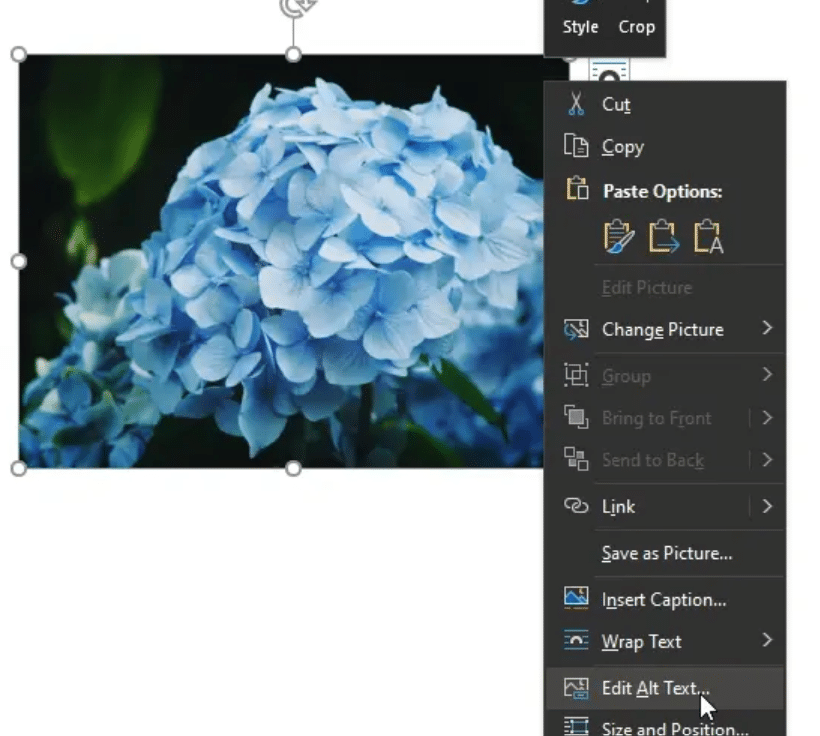
How to add alt text in Microsoft Word
To add alternative text to an image in Word 365:
- Find the image you want to tag with an alternative text (In Microsoft’s terminology: alternative description).
- Right-click the picture and choose Edit alt text in the menu that appears.
- In the Alt text-pane you can write your alt description – you should avoid using the automatically generated alt text.
- Save your document or find the next image that needs an alt text and repeat step 1-3.
This must be done manually for every single image that you have chosen to use in your document.
For PowerPoint and Excel, the method of adding alt text is the same.
How to add alt text in Google Docs
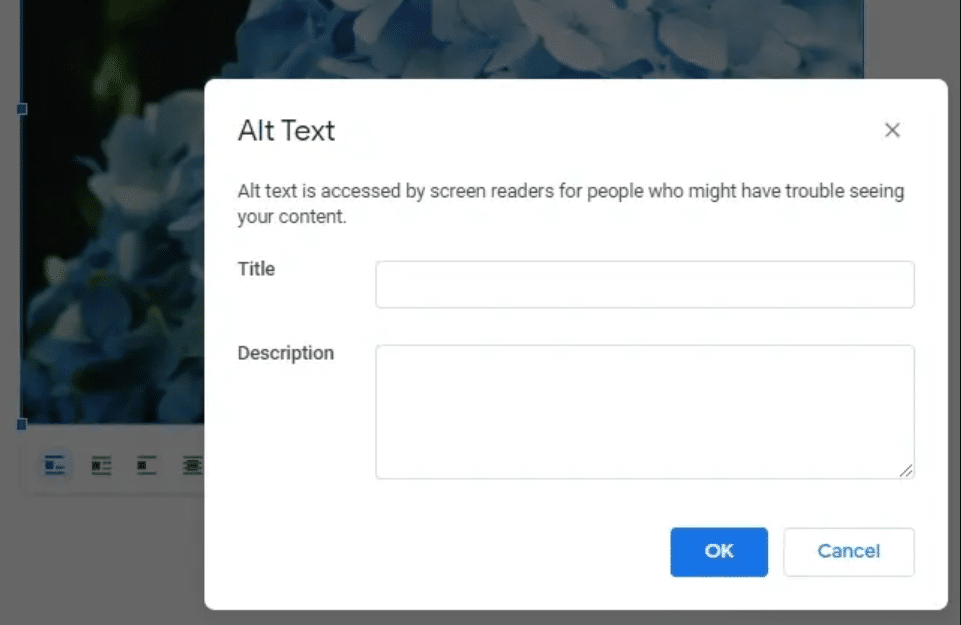
To add alternative text to an image in Google Docs:
- Find the image you want to tag with an alternative text.
- Right-click the picture and choose Alt text (or use the keyboard short CTRL + ALT + Y) in the menu that appears.
- In the Alt text-pop up you can write your alt text and an image title.
- Save your document or find the next image that needs an alt text and repeat step 1-3.
This must be done manually for every single image that you have chosen to use in your document.
How to add alt text in Adobe InDesign
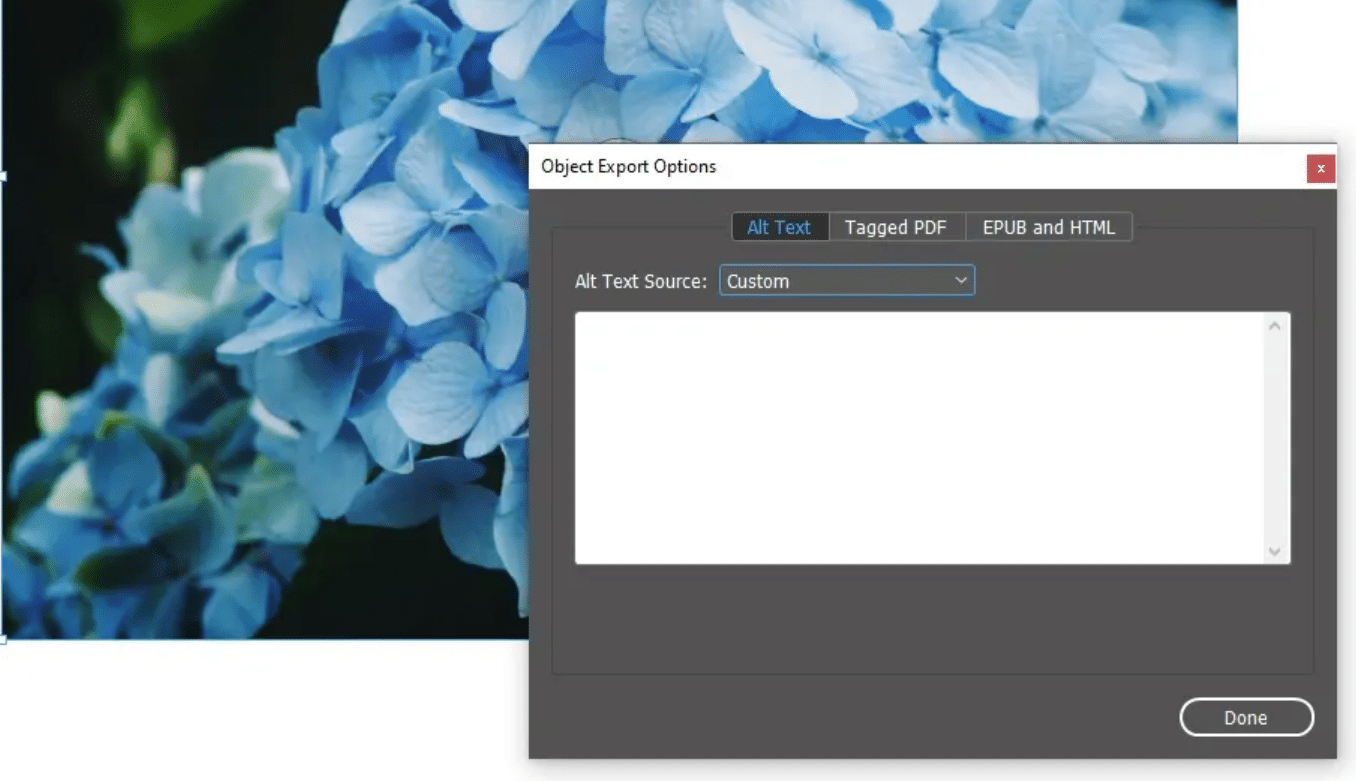
To add alternative text to an image in Adobe InDesign (Version 17 and newer):
- Find the image you want to tag with an alternative text.
- Select Object and choose Object Export Options.
- Select the option called Custom in the dropdown and write your alt text in the Alt text source.
- Save your document or find the next image that needs an alt text and repeat step 1-3.
- Remember when exporting, to check the box Create Tagged PDF.
This must be done manually for every single image that you have chosen to use in your document.
 How to add alt text in Adobe Acrobat
To add alternative text to an image in Adobe Acrobat DC:
- Click the More Tools icon and enable Accessibility under the Protect & Standardize heading.
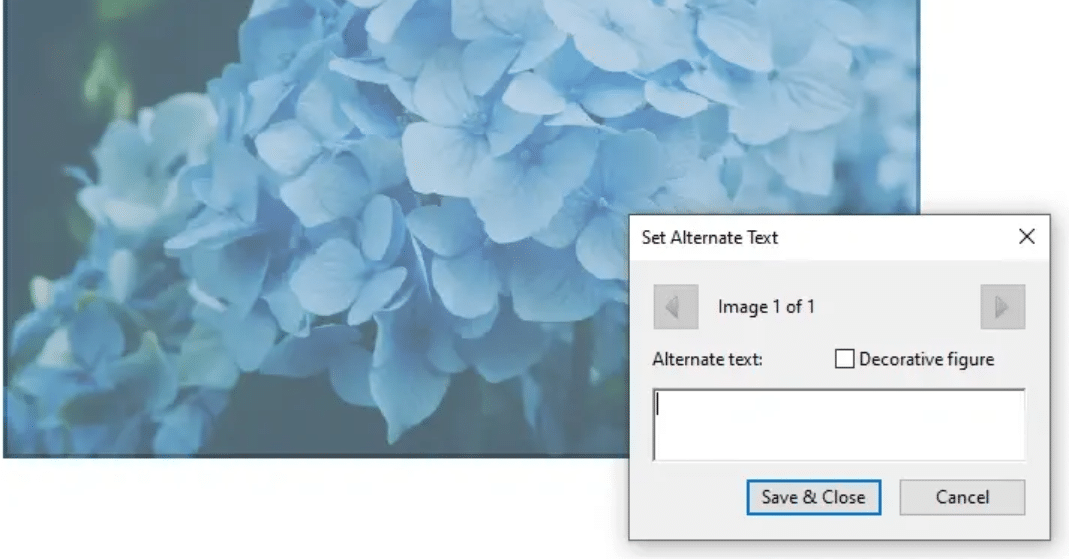
- Once Accessibility tools have been enabled choose Set Alternate Text.
- Adobe Acrobat will now open a pop up that will take you through everything that needs to be given an alternate text or be tagged as decorative in your file.
- Save and close.
 Assistive technology for creating accessibility
An increasing number of people are choosing to use helpful tools like Assist Pro, which actively and automatically points out everything in your document that requires alt text and helps you add it – directly in Microsoft Word, PowerPoint and Excel.
Best practice, tips, tricks and more
- If you are going to write a lot of alt text, or just work with accessibility in general, it is best practice to try and access a document or a web page using screen readers. Experiencing the document through screen readers gives the necessary insight to create better accessibility. Google Chrome has a free extension that can give a good impression of what using a screen reader feels like.
- Keep in mind that the screen reader knows the different areas of a document already. It will tell the user when they are examinig text, objects and images. This means you do not have to write “Image of..” or “illustration that shows..” in front of your alt texts.
- When adding alt text, keep in mind that any alt attribute should be kept below 100 characters if possible.
- Using your images to boost SEO scores by employing keyword stuffing may seem like a good idea, but it makes the internet a strange maze to navigate for screen reader users and should be avoided. Furthermore, SERP’s will detect keyword stuffing and penalize you.
- Some people will call alt texts for alt tags, alt descriptions, or alternate texts – they are the same thing, but alt texts is the correct expression when referring to texts that describe the image used.
- As a rule of thumb, if the image adds any kind of meaningful information to your document it needs an alt text – if not, you can tag it as decorative.
- Last but not least – always strive to write better alt text – a lot of people with visual impairment or a wide range of other disabilities will be glad that you do.